Appearance
Lookups
Lookups are the reusable lists the rest of the app picks from. When you add a group activity type, a care tag, or a placement reason here, it becomes a choice everyone selects from elsewhere — so the whole shelter uses the same, consistent vocabulary instead of free-typing.
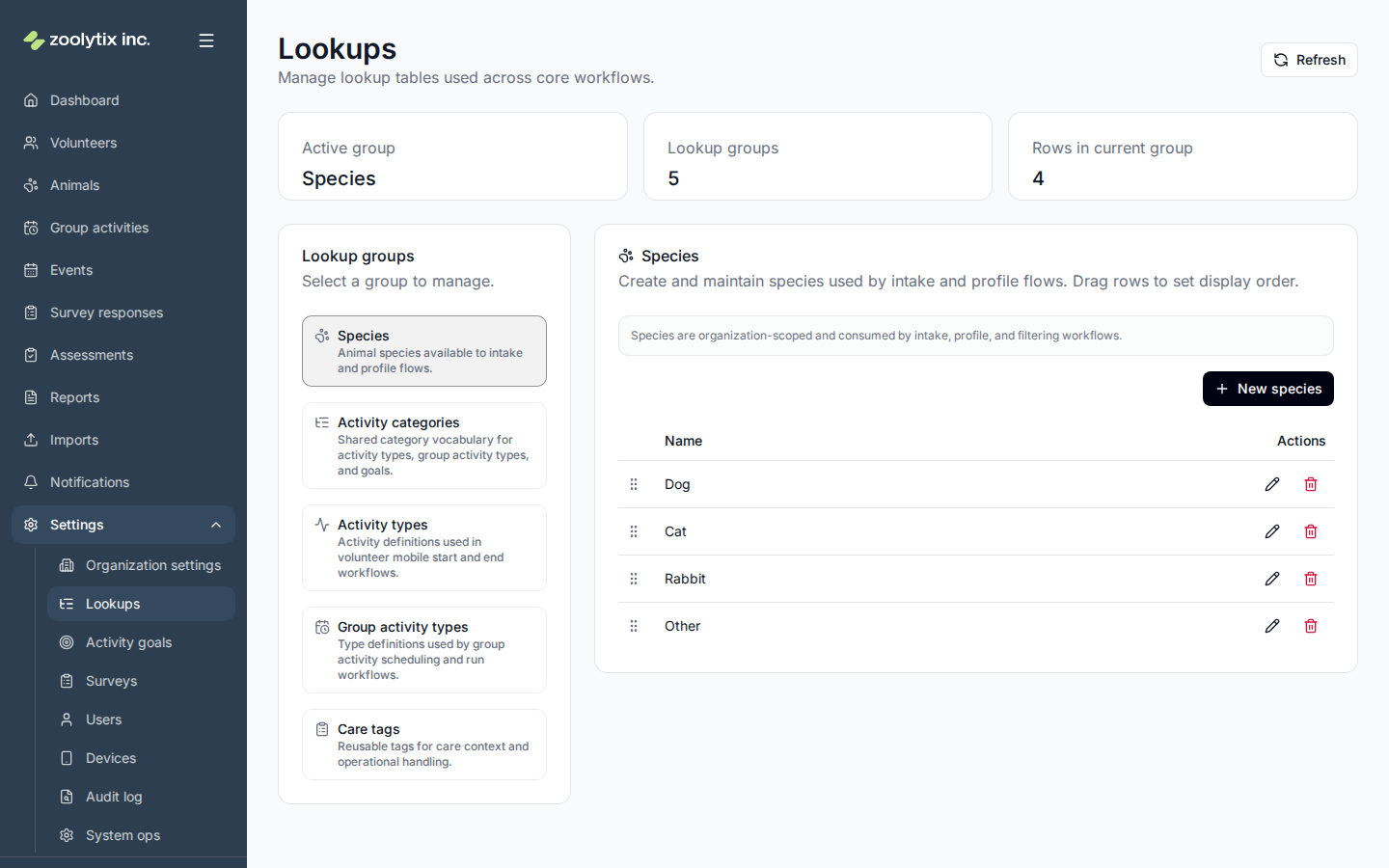
Looking for species, activity categories, or activity types?
They moved to the Enrichment plans area: species and activity categories are managed on the plans page itself, and activity types are edited inside the plan setup wizard. Old links here take you to the right place automatically.
Who can use this page: administrators. Lookups are configuration, so a change here affects the whole organization.
The lists you manage, and where they show up
- Group activity types — the kinds of group activities you run (sessions with several animals, like a playgroup), each with a category.
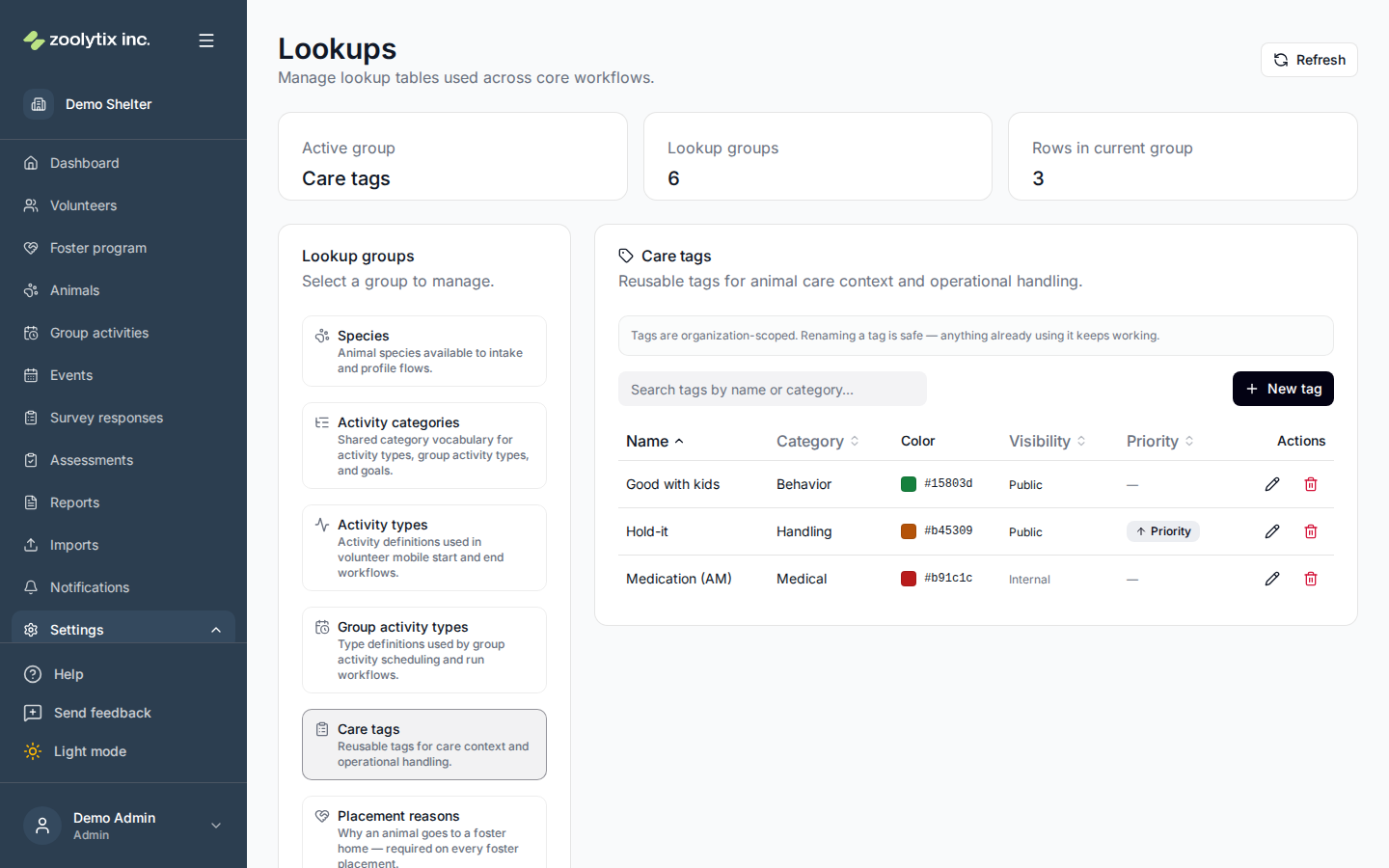
- Care tags — reusable labels you can apply to animals (for example "shy" or "medical") to flag handling context. Each tag is Public (may appear on outward-facing surfaces, currently the printed shelter card) or Internal (app-only) — the Visibility column shows which.
- Placement reasons — why an animal goes to a foster home (your organization starts with Underage, Medical, Break, and Other). A reason is required whenever an animal is placed in foster, and foster-program reporting groups placements by these values. Deactivate a reason to retire it from new placements without touching history; a reason already used by a placement can't be deleted.
Manage a list
- Pick the list you want to edit.
- Add a new entry or edit an existing one.
- Save. The change applies everywhere that list is used.
Some values can't be deleted, because deleting them would change what already happened. When you only want to stop people picking a value from now on, set its status to Inactive instead: it disappears from the lists volunteers and staff choose from, and everything already recorded against it stays exactly as it is.
A care tag asks only for a Name, a Category, and an optional Color; ShelterSync keeps track of the internal reference for you, so there is nothing technical to fill in. That reference is fixed once the tag exists, which is why renaming a tag never breaks anything already using it. For the color, pick a swatch beside the field or type an exact hex value like #aabbcc; the X clears it. The Care tags list has a search box and sortable columns to help you find a tag in a long list.
Category is a picker: start typing to search the categories you already use, pick one, or choose Add to create a new one. Categories keep the capitalization you type — "ShelterLuv" stays "ShelterLuv". If you re-type an existing category with different capitalization, every tag in that category is updated to match, so your list holds one spelling rather than two.
Priority tags
Tick Prioritize for activities on a care tag to make animals carrying it appear first — at the top of the animal list in the mobile app, and at the top of the dashboard's Animals with unmet goals card. Tagged animals also show a Priority badge, and volunteers can tap the Priority filter in the mobile app to see only those animals.
A common use is a "Hold-it" tag for dogs that can wait overnight and should therefore be taken out first. Nothing is tied to that name, though: call the tag whatever suits your shelter, and mark as many tags priority as you need. Renaming or deleting a priority tag changes nothing else.
Priority affects the order animals are listed in, and nothing else. It does not change any animal's activity goals, and it does not set a deadline or send a reminder. On the dashboard card it only reorders animals that are already there — an animal that has met all its goals still doesn't appear. Marking most of your tags as priority removes the distinction, so use it sparingly.
Fields explained
| Field | What it means |
|---|---|
| Placement reasons | Why an animal goes to a foster home — every foster placement records one. Your organization starts with Underage, Medical, Break, and Other; rename them or add your own. Deactivate a reason to hide it from new placements without touching history; a reason already used by a placement can't be deleted, only deactivated. The foster program reporting groups placements by these values. |
| Care tag category | How care tags are grouped — for example ShelterLuv, Medical, or Behavioral. Start typing to search the categories you already use and pick one, or choose "Add" to create a new one. Categories are saved with the capitalization you type, and reusing an existing one keeps the list tidy. If you re-type an existing category with different capitalization, every tag in it is updated to match, so you end up with one spelling rather than two. |
| Color | An optional color for the care tag, used wherever the tag is shown as a badge. Pick one from the swatch beside the field, or type an exact hex value like #aabbcc if your organization has set colors. Leave it empty and the tag uses the default badge styling — the X beside the field clears a color you no longer want. |
| Prioritize for activities | Marks a care tag as a priority tag. Animals carrying it are listed first in the mobile app's animal list and on the dashboard's "Animals with unmet goals" card, and show a Priority badge — so whoever is deciding who to take out next sees them at the top. A common use is a "Hold-it" tag for dogs that can wait overnight and should therefore go out first, but the choice is yours: name the tag whatever you like and mark as many tags priority as you need. Renaming or deleting the tag changes nothing else. Priority affects the order animals appear in and nothing more — it does not change any animal's activity goals, and it does not set a deadline or send a reminder. Marking most of your tags as priority removes the distinction, so use it sparingly. |
| Visibility (Public or Internal) | Each care tag is either Public or Internal. Public tags can appear on outward-facing surfaces — currently the printed kennel card. Internal tags stay in the app only: they still show on the animal's profile, but never on public surfaces. Set it with the Public checkbox when you create or edit a tag; the Visibility column in the list shows each tag's setting. Tags synced from ShelterLuv follow their ShelterLuv Publish setting: every sync re-applies it, so change it in ShelterLuv for those tags — a manual change here lasts only until the next sync. |