Appearance
Animals
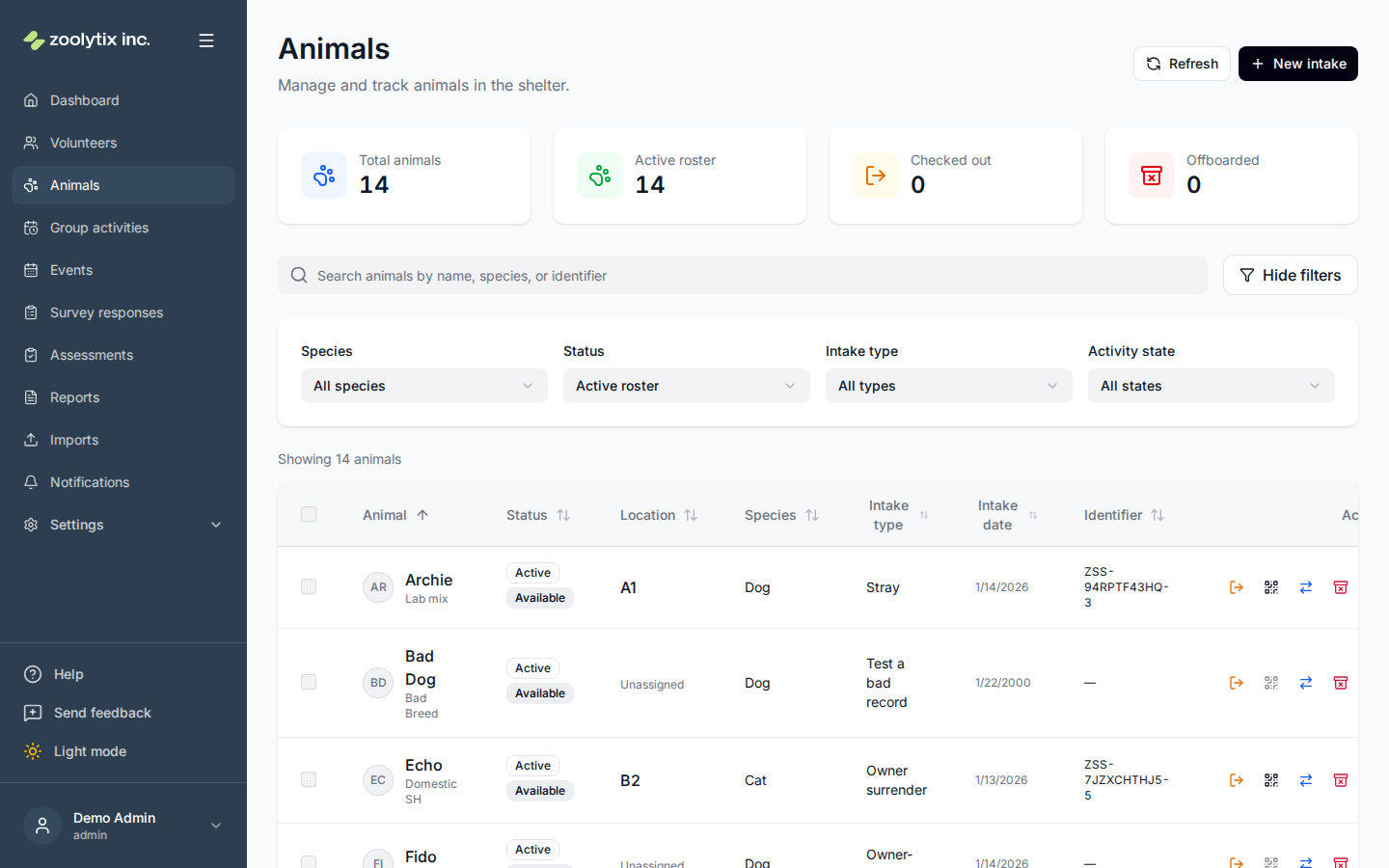
The Animals page is your shelter's roster — every animal in your care. From here you find animals, open a profile to see everything about one, take quick actions like checking an animal out for a walk, and bring new arrivals into the system.
Who can use this page: everyone can view animals. Creating, editing, transferring, and offboarding are staff and administrator actions.
Two labels on every animal: status and availability
Each animal shows two badges, and they mean different things:
- Status is where the animal is in its overall journey through the shelter.
- Availability (the second badge) is whether the animal can do an activity right now.
They're independent — an animal can be Active (status) but on a Medical hold (availability) at the same time.
Status — the animal's lifecycle
| Status | Meaning |
|---|---|
| Active | In your care and part of the daily roster. |
| On hold | In care but set aside (for example pending a decision). |
| Foster | Living in a foster home. |
| Adopted / Transferred / Returned to owner / Released | A final outcome — the animal has left your care. |
| Euthanized / Passed away / Lost | A final outcome recording that the animal is no longer in care. |
Animals with a final outcome are offboarded — they drop off the active roster but their record is kept for history and reporting.
Availability — can it do an activity now?
| Availability | Meaning |
|---|---|
| Available | Free to be checked out for an activity. |
| In activity | Currently checked out / in an activity. |
| At vet | Away receiving veterinary care. |
| Quarantine / Medical hold / Behavior hold | Held back from activities for health or safety reasons (setting these requires the holds permission). |
| Restricted / Unavailable | Not available for activities. |
| Unassigned location | Has no location set yet, so it can't be checked out. |
Find an animal
Use the search box to look up a name, species, or identifier, and the filters to narrow by species, status, intake type, or availability. Click any column heading to sort. The count ("Showing 14 animals") reflects whatever filters are applied.
The summary cards above the roster double as one-click filters: Total animals shows everything, and Active roster, In foster, On hold, and Offboarded show the animals in each status — those four add up to the total, so it's always clear where every animal is (Offboarded filters when you have offboarding access). Checked out is a little different: it shows animals currently out with someone, whatever their status. The card driving the current filter is outlined — click another card, or change the Status filter, to switch views. Hover over any card (or focus it with the keyboard) for a short definition of exactly what it counts.
Row actions (the icons on the right)
Each row has quick-action icons. What you see depends on your role:
- Check out / check in — start or end a checkout. Checking an animal out records that it's with a person or at a location (and flips availability to In activity); checking it in closes that record. A checkout starts from where the animal is or a location marked Housing, and its destination is where the animal already is or a location marked Activities; a check-in's ending location is one marked Housing or where the checkout began (see what a location is for).
- QR code / card — show the animal's QR code, save it on its own as an image, or print its shelter card (also called a habitat or kennel card). See Print a shelter card.
- Transfer — move the animal. See Moving animals.
- Offboard (archive icon) — record a final outcome (adoption, transfer, euthanasia, etc.). Euthanasia asks for confirmation. Offboarding never deletes the record — it moves the animal off the active roster.
Intake a new animal
"Intake" means adding an animal to the shelter for the first time.
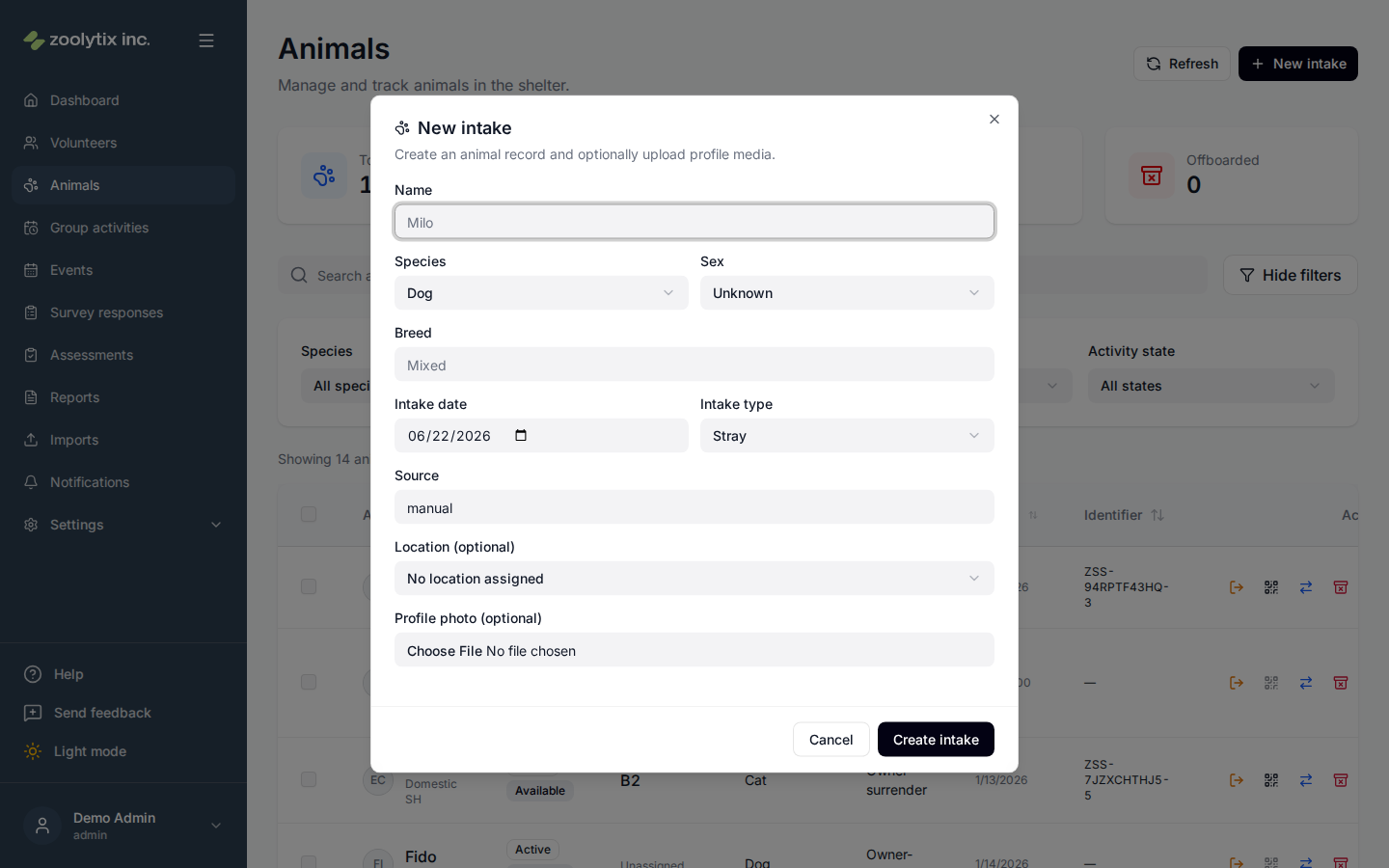
- Click New intake in the top-right.
- Enter the basics — at minimum a name, a species, and an intake type (how the animal came to you, e.g. stray or owner surrender).
- Choose a location so the animal has somewhere to live and can be checked out. The list offers your locations marked Housing.
- Save. The animal joins the roster and is automatically assigned a unique identifier (its ZSS ID).
The intake date starts on your shelter's today — the date it is where the animal is, in the reporting timezone an administrator sets in Organization settings, not the date on the computer you are using. The two differ for anyone working from another timezone, and the shelter's date is the one the record is filed under.
The intake form deliberately does not ask for a handling tier. A new animal is recorded as Not yet assigned and stays there until somebody classifies it from the animal's Edit form or a bulk edit — see Not yet assigned.
Bringing in a whole list at once? Use Imports instead of adding them one by one.
Bulk editing
Tick the checkboxes on several rows to act on them together — for example setting the handling tier for a group of animals at once. Bulk actions save time when the same change applies to many animals, and each change is recorded individually in the audit log.
Set handling tier opens with nothing chosen, and Apply stays unavailable until you pick a tier. That is deliberate: the dialog writes the one tier you pick onto every animal you ticked, so a pre-filled box would mean a stray click could re-tier a whole selection to something nobody decided.
The handling tier says who may handle an animal:
- Not yet assigned — nobody has classified this animal yet. Every animal starts here.
- Volunteer-friendly — any volunteer.
- Experienced only — experienced handlers; new volunteers are kept away.
- Staff only — staff handling required.
"Not yet assigned" means nobody has said
A new animal — one you intake, and one that arrives through an import — has no handling tier until somebody sets one. ShelterSync says so rather than guessing, and the tier stays Not yet assigned until a person with the handling-tier permission chooses otherwise. The intake form does not ask, deliberately: a form that insisted would only get you to pick something to get past it.
Not yet assigned is not a claim that the animal is easy to handle. It is the absence of an answer, and it is deliberately different from Volunteer-friendly, which is somebody saying any volunteer may handle her.
ShelterSync does not decide what happens with an unclassified animal — your shelter does. An animal on Not yet assigned raises no confirmation prompt. Real rules for a fresh intake, for a newborn, or for a litter vary from shelter to shelter and are not reducible to "staff only", so this is left to your own procedure rather than guessed at.
To see which animals are still waiting, use the Handling tier filter on the Animals page and choose Not yet assigned.
A phone that has not been updated
Volunteer phones running an app version released before this tier existed do not recognise it, and show an animal on Not yet assigned as volunteer-friendly. Updating the app fixes it for that phone. Nothing the shelter changes in the web app can correct an app that has not been updated.
What Experienced only and Staff only change
An animal on Experienced only or Staff only is never hidden, greyed out, or taken off any list. It stays exactly as visible as every other animal — someone who is not cleared to walk her should still be able to read about her.
What changes is one moment. When someone tries to start an activity with that animal — on the mobile app, from Start activity on the animal's page here in the web app, or by starting a group session she is in — they are stopped and shown:
- the tier, and the animal's handling note when one has been written;
- a line they tick to confirm they are cleared to handle this animal;
- a note that this is recorded with their name and the time;
- and a line telling them to ask a staff member what the tier means at your shelter and what it takes to be cleared for it — because the moment someone is stopped is the moment to tell them how to stop being stopped, not to turn them away. ShelterSync deliberately does not name a team or a programme here: what a tier means, and who may be cleared for it, is your shelter's own arrangement rather than something the product decides.
Until they confirm, the timer will not start. This is enforced by ShelterSync itself, not just by the app's screen, so it cannot be got around by the app. Only Experienced only and Staff only raise it — Not yet assigned and Volunteer-friendly do not. It covers starting an activity with one animal, from the mobile app or from an animal's page in the web app, and starting a group session from the web app or, for staff and administrators, from the mobile app — the same statement to agree to, and the same record, wherever it happens. A group session asks once: one prompt lists every animal in it that needs a confirmation, each with its own tier, handling note and line to tick, and a separate confirmation is recorded for each animal. Adding such an animal to a session that is already running asks in the same way, because for that animal the session is starting then. Each confirmation covers one start — one activity, or one group session — and the next one asks again.
A confirmation is also tied to what the person was shown. If you change the animal's handling tier or rewrite her handling note, anyone who confirmed against the old version is asked again the next time they start — they are not let through on a confirmation about something else. That applies in both directions, including a change that makes her easier to handle, so somebody about to work with her always sees the instructions currently in force.
The confirmations are kept in the audit log with who, which animal, what they agreed to, and when. If the animal's tier is changed later, past confirmations still say what they said at the time.
Logging a past session that has already happened — the foster retro-log — is not stopped this way. The handling is over by then, so a prompt could not change how it went, and refusing the log would only lose the record of a session that happened anyway. This is an exception for that one action, not for the person: the same foster starting a live activity with the same animal is asked to confirm exactly like anyone else.
The handling tier belongs to the animal, and it only changes when someone with permission changes it. It is not the same thing as the handling recommendation a behavioral assessment produces: that one belongs to the assessment, is advisory, and never changes the tier by itself.
Print a shelter card
A shelter card is the printable card you hang on a kennel or habitat. Open an animal's QR / card action to view its QR code, and pick one of two things to do with it: Download image saves the code on its own as a picture file, for when you are building your own printed material in another program; Print kennel card prints the full card. The card carries the animal's microchip number beside the QR code — see Identifiers and microchips for which numbers print and what appears when there are none. The QR code lets staff and volunteers pull up that animal on the mobile app by scanning — handy for confirming you're working with the right animal at the kennel. After a scan the app offers to start an activity straight away, or to open the animal's full record if you want to read up first.
The card shows the animal's Public tags only — Internal tags (say, a staff-only note) still appear on the animal's profile in the app, but stay off the printed card. Tags synced from ShelterLuv follow their ShelterLuv Publish setting; for tags you create yourself, use the Public checkbox when editing the tag in Lookups → Care tags.
Open an animal's profile
Click a row to open the full profile. It's organized into tabs:
- Overview — demographics, identifiers, tags, weight, handling tier, status and availability, location, and intake/outcome details.
- History — a timeline of every status and availability change, with who changed it, when, and why.
- Surveys — the activity surveys recorded for this animal.
- Plan — this animal's daily targets, where each one comes from, and how much has been logged today. See The Plan tab below.
Need to change something? Click Edit in the profile header to open the same edit form as the pencil icon on the animal's roster row — name, demographics, location, tags, and more. Editing requires the animal-update permission (staff and administrators by default). Identifiers are the exception: they are edited on the profile itself, in the card below.
Identifiers and microchips
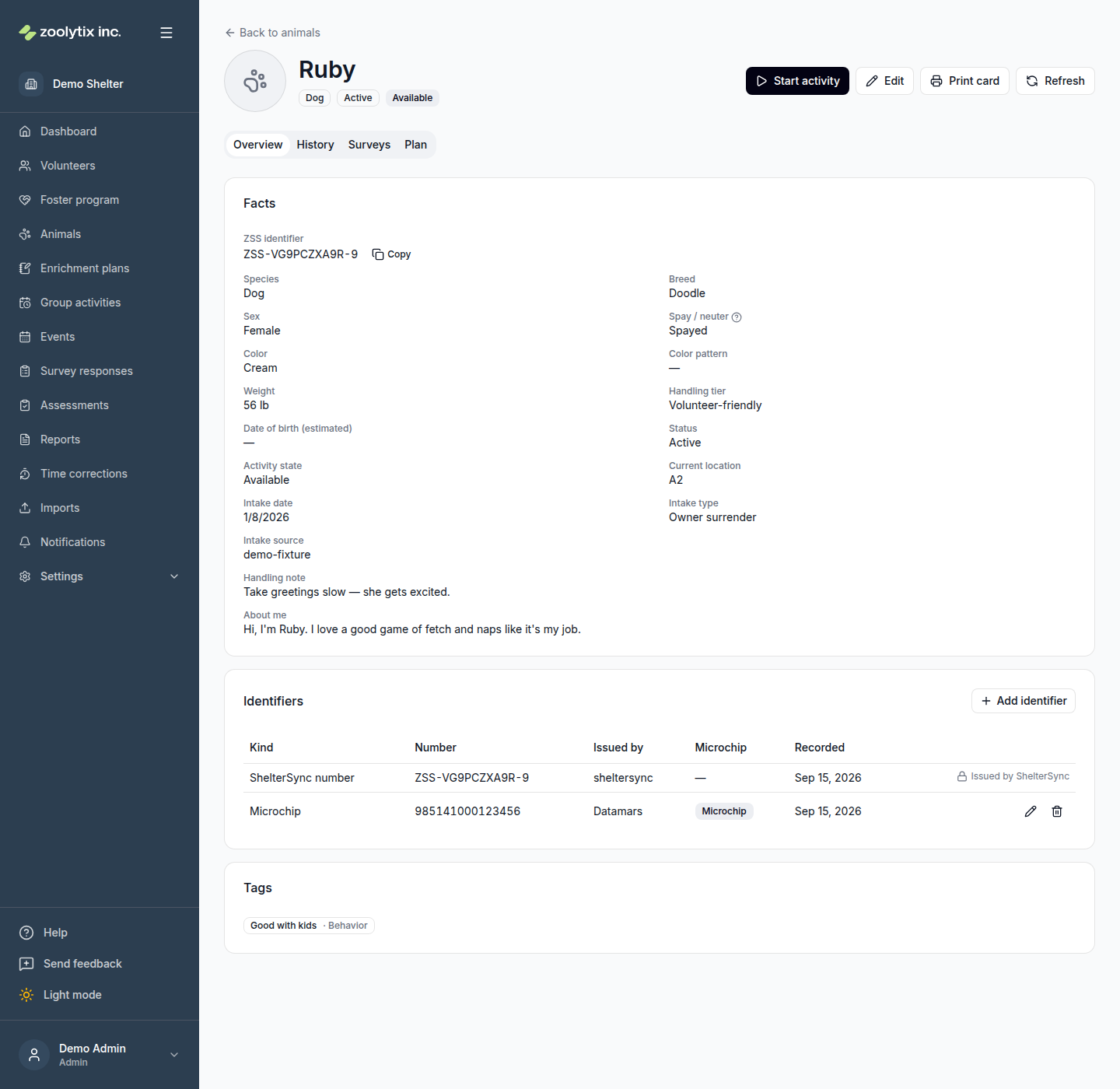
The Identifiers card on the Overview tab lists every number that identifies the animal: its microchips, the id it came in with from another system, a rabies tag, a licence number — whatever your shelter records.
With the animal-update permission you can:
- Add one with Add identifier. Give it a Kind in your own words (say,
microchip), the Number, and optionally who issued it. - Correct one with the pencil on its row. A correction changes the identifier in place and keeps its own record, including the date it was first written down — so fixing a mistyped chip number does not make the animal look newly chipped today. The Kind is correctable the same way, for a number recorded under the wrong one.
- Remove one with the bin on its row. You are asked to confirm first, and you can add it back later. If a change is refused — because someone else changed your permissions, or because another animal in your shelter already carries that number — the form or the confirmation stays open and says why, so nothing looks done when it was not.
Which numbers print on the kennel card
Tick This is a microchip on an identifier and its number is printed on the animal's shelter card, so staff can check the chip at the kennel instead of walking back to a computer.
An animal can have more than one chip — an animal chipped again at a second shelter is common — and the card prints every number you have ticked. When none are ticked, the card prints None on file rather than leaving a gap, so nobody has to guess whether the animal is unchipped or the card is out of date.
Ticking the box is what makes a number count as a chip. Typing the word "microchip" into Kind does not, and neither does an import: chips that arrive from ShelterLuv are ticked for you.
The ShelterSync number
One row cannot be edited or removed, and says so: the ShelterSync number (it starts ZSS-). ShelterSync issues it when the animal is taken in, the QR code on the printed card is built from it, and it stays the same for the life of the record so a card printed months ago still scans.
The Plan tab
The Plan tab answers one question: what should this animal get today, and how is it going?
The table lists every daily target that applies to the animal. For each one it shows:
- Daily target — the minutes that actually apply to this animal.
- From — where the number comes from. "Dog plan" means the species' enrichment plan as-is. Individual plan means this animal has its own plan, and the two halves are shown next to it — "120 +30" reads as the Dog plan's 120 minutes, plus 30 for this animal.
- Today — minutes logged so far against that target, over your shelter's reporting day. It is the same number the dashboard and the volunteers' app show.
A row whose Daily target reads No minimum is a category the plan tracks without a daily minimum (a target of 0 on the enrichment plan, or an individual plan that takes the whole target off). Its Today column still shows the minutes logged, but it never earns a Met badge and never counts as missed — not here, not on the dashboard, not in reports.
Individual plans
An individual plan is added on top of the species plan for one animal. It can:
- add or subtract minutes in any category — "+30 exercise" while she works on leash skills, "−15 exercise" while he recovers from a strain;
- add activities this animal should get;
- carry step-by-step instructions, free-text notes (including medical handling notes), and a review date for when the plan should be revisited.
Every individual plan needs a reason, and everyone who opens the tab sees it.
Because a plan is a difference rather than a replacement, changing the species plan moves this animal with it: if the Dog plan drops from 120 to 100 minutes, an animal at "+30" goes from 150 to 130 on its own. A reduction as large as the species plan, or larger, leaves the animal with no daily minimum for that category — the row reads No minimum, and the category is tracked rather than met or missed.
End individual plan returns the animal to its species plan. The plan is kept on the record rather than deleted, and you can start a new one at any time.
Viewing the tab needs animal access; adding, changing, or ending a plan needs the activity-goals permission.
Handling protocols
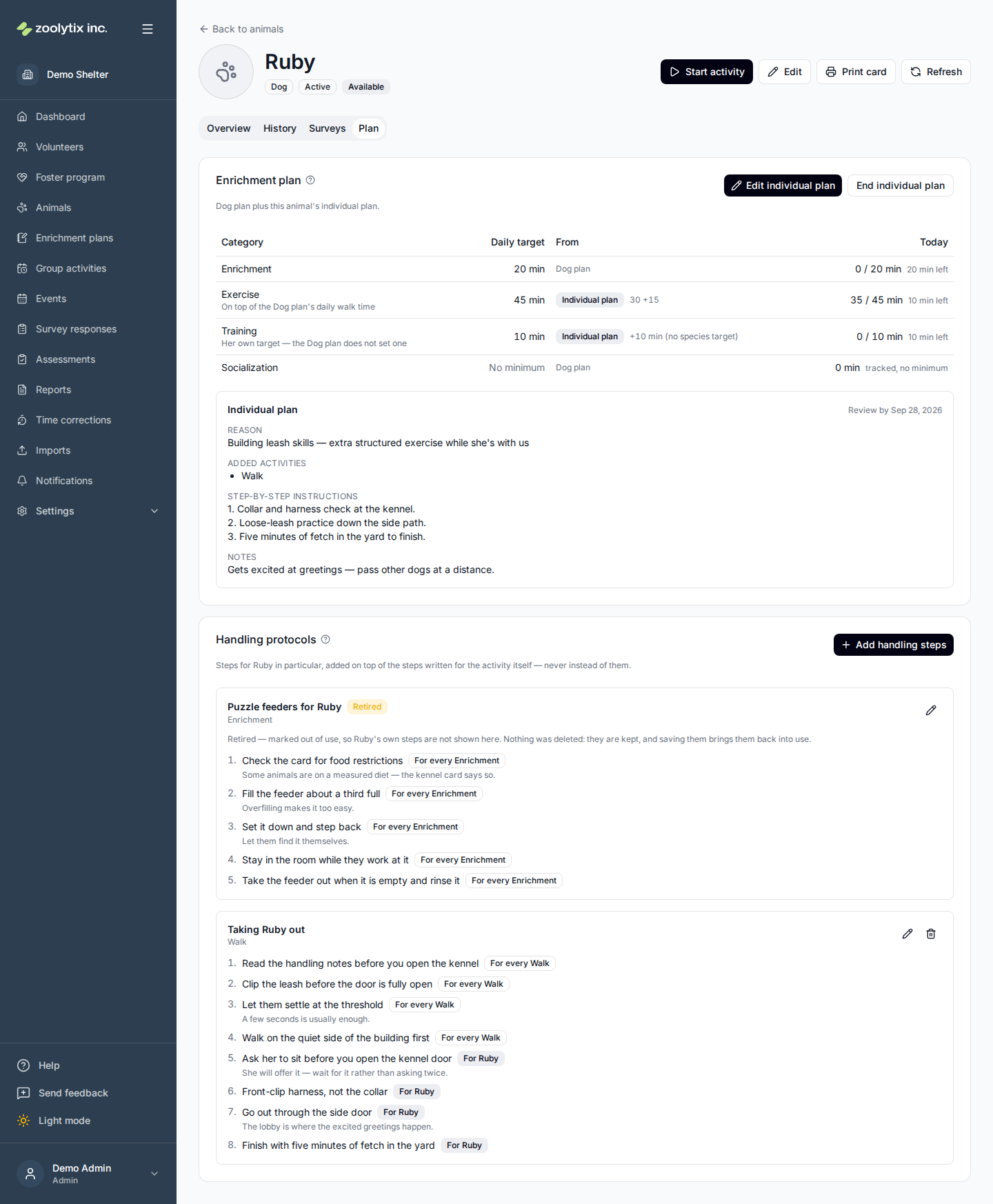
Below the plan, Handling protocols holds the steps for this animal in particular — how to get her out of the kennel, what to avoid, what to finish with. It is the per-animal half of the same idea as the handling steps you write for an activity: the activity's steps say how the activity is done at your shelter, and these say what is different about this animal.
The two are added together, never swapped. While both are in use you see one numbered list: the activity's steps first, then this animal's, each step labelled with where it came from ("For every Walk", "For Ruby"). If an activity has no steps of its own, you just see the animal's; if the animal has none, the activity's still apply. A set that has been retired puts nothing into that list — which is what the picture above shows for Ruby's enrichment steps: her own set is marked Retired, and every step listed under it is labelled "For every Enrichment".
Write them per activity — an animal can have one set for walks and another for training. Click Add handling steps, pick the activity, and write the steps in the order someone should do them (the up and down arrows reorder them). While you write, anything already written for that activity is shown above your list so you do not repeat it.
Like every protocol in ShelterSync, these are there to be read, not to be signed off: no record is kept of who read them or which steps they ticked. Volunteers see them on their phone when they start the activity, below the activity's own steps, and can skip past them — unless an activity's protocol has a must-tick step, which is set on the activity rather than here. Even then, the tick only decides what their phone lets them do next; afterwards there is no way to ask whether a step was ticked.
Retire stops a set's steps being listed without deleting them — the set is marked with a Retired pill on its heading, and a line under it says the steps are kept but not shown. They come back the moment you save the set again. What stays on screen under that heading is whatever the activity's own steps still contribute — so a retired set can still show a numbered list, and the labels on it are how you tell whose steps those are. Retiring an animal's steps has no effect on the activity's own steps, and ending an animal's individual plan has no effect on its handling steps: they belong to the animal, so an animal with no plan at all can still have them.
The two layers are retired separately, and the card tells you which one has gone. A retired set of this animal's steps carries the Retired pill on its own heading. When it is the activity's steps that were retired — done in the plan setup wizard, not here — the animal's entry for that activity says so in a line naming it, so a list that is shorter than it was last week explains itself rather than leaving you to wonder what happened to the missing steps. That line needs the animal to have steps of its own for the activity, because those are the only activities this card lists: if the animal has none, that activity has no entry on the card at all, and nothing there mentions the retirement.
Reading them needs animal access; writing them needs the same activity-goals permission as the individual plan.
Start an activity from a profile
Staff, administrators, and volunteers can start an individual activity (a walk, enrichment, a play-area session, an office day) straight from an animal's profile — no phone required. Open the profile and click Start activity, pick the activity type, and go. Notes are captured when you end the activity, so everything you observed goes in one place. The button is only available while the animal's availability is Available; an animal already in an activity, on hold, or checked out can't start another. If the animal's handling tier is Experienced only or Staff only, starting it asks you to confirm you are cleared to handle that animal first — the same confirmation the mobile app asks for, recorded the same way.
When the animal is offered a long list of activities in two or more categories, the dialog opens to your categories instead of one dropdown, by the same rule as the phone. Each category says how many activities it holds; click one to open it, then click the activity. Opening another category closes the one that was open. An activity you chose stays chosen when you close its category, and the category shows which one it is, so you can look elsewhere before you start. Start activity stays at the bottom of the dialog however far the list runs. With the keyboard, Tab moves between the categories and into the open one, Enter or Space opens or closes a category, and the arrow keys move through its activities, choosing as they go. A shorter list, or one whose activities all share a category, is the same dropdown as before.
If the activity type you need isn't in the list and you manage lookups, click Add activity type beside the field. It opens the plan setup wizard's own form — name, typical and maximum minutes, what to do, where it happens, suggested locations, surveys, and which species it is offered for — plus a category, which the wizard knows from the card you are in but this dialog has to ask for. This animal's species is already ticked, so the new type is offered here the moment you save it; choose All species to offer it to every animal instead. After saving, the list reloads and the new type is selected. If you saved it for other species only, it isn't offered for this animal, and the dialog says so rather than listing it. People who don't manage lookups don't see the button.
The activity is recorded like one started from the mobile app — with one difference: this dialog does not ask where the animal is going, so the animal stays at its current location, while the phone asks for an activity set to Out of housing or Either and moves the animal to the place picked. Otherwise the two are the same: the animal is checked out and marked In activity, the session appears in the Dashboard's Live activities table, and when you end it you're asked one thing — the post-activity survey where one is waiting on the activity (its type has a survey set up; a first-time survey waits only on your first session with that animal), or a single notes box where none is. The start dialog says which to expect as soon as you pick a type. The phone asks the same, plus where the animal is going back to.
While an activity is running, the profile shows who has the animal out and since when. If you started it, the profile also shows End activity — click it, choose Completed (default) or Abandoned, and, when a survey is waiting, you're walked straight into it on completion, right there; when none is, leave a note in the box instead. Abandoning cancels a waiting survey and opens nothing. Ending it here puts the animal back where it was when the activity started — also when you started it on your phone and took the animal somewhere else — unless someone has moved it since. An animal that left the shelter while it was out, adopted in ShelterLuv for example, is not put back, however the activity ends: it stays where it is, unavailable. The same End action is on your row in Dashboard → Live activities. Only the person who started an activity can end it normally; administrators ending someone else's session use Override end (which cancels the surveys) — overrides are for stuck sessions, not routine stops.
Volunteers can use this web flow too, from a trusted (approved) browser — the mobile app remains the at-kennel path with its QR checks. New or unapproved browsers get restricted access and can't start activities until the device is approved.
Log a drop-off
A drop-off is an activity marked Drop-off in the plan setup wizard: something left in the kennel, like a frozen treat, that nobody stays to time. The Start activity dialog lists drop-offs with the activity types, with Drop-off beside the name.
- Open the animal's profile and click Start activity.
- Pick the drop-off. The dialog says what it is, and the button changes to Log drop-off.
- Click Log drop-off.
It is recorded as done straight away: there is no timer, nothing to end and no survey, and the animal stays available where it is. It counts the activity's Typical minutes toward this animal's daily target in its category and is not anyone's time. The activity's own page says Drop-off and what it counted, where a timed activity shows its duration.
Sometimes it is not logged, and the dialog says why — for example the animal is not in its kennel just now, or the same drop-off was already logged for it in the last 15 minutes. If the animal's handling tier is Experienced only or Staff only, you are asked to confirm you are cleared to handle it first, as when starting an activity; after you confirm, the drop-off is tried once more.
Moving animals
Use Transfer to move an animal. There are three kinds of move, and they mean different things:
- Change location — move the animal to a different location within your shelter (a different kennel, room, or site). Day-to-day location changes.
- Foster placement — send the animal to live with a foster. Its status becomes Foster; it stays your animal. You pick the foster, a placement reason (for example Underage, Medical, or Break — the list is managed in Lookups), and optionally an expected return date and notes. The reason and expected return show on the animal's profile while it's in foster, and they stay on the transfer history after it comes back.
- Transfer to another organization — hand the animal off to a different shelter. This is a final outcome for your shelter.
Locations come from your shelter's location tree — see Organization settings. An animal's location is where it lives, so Change location and Foster placement offer the locations marked Housing.
Fields explained
| Field | What it means |
|---|---|
| Summary cards | The cards above the roster double as filters: Total animals shows everything, and Active roster, In foster, On hold, and Offboarded show the animals in each status (the four status cards add up to the total; Offboarded filters when you have offboarding access). Checked out is different — it shows animals currently out with someone, whatever their status. The card driving the current filter is outlined; click another card or change the Status filter to switch. Point at a card (or focus it with the keyboard) for a short definition of exactly what it counts. |
| QR code and shelter card | The QR code action on a row opens the animal's code with two things you can do with it. Download image saves the code on its own as a picture file — that is the one to use if you are building your own printed material, such as a back-of-kennel-card template, in another program. Print kennel card prints the full shelter card instead: the photo, name, species, location, the same code, and the animal's microchip number, laid out ready to hang. Both come from the animal's ShelterSync number, so an animal that has not been given one cannot open the dialog and its QR action stays greyed out. The card prints every microchip ticked as one on the animal's profile, and says None on file when there are none — so a blank line never has to be read as either. |
| Identifiers | Every number that identifies this animal, on its profile. Add one, correct one, or remove one from this card. Correcting an identifier keeps its own record, including the date it was first written down — so a chip number someone mistyped, or a tag recorded under the wrong kind, can be put right without the record starting again. The one exception is the ShelterSync number: the system issues it, the QR code on the printed card is built from it, and it never changes, so its row says so instead of offering an edit. |
| Kind | What sort of number this is, in your own words — microchip, rabies tag, a licence number, an id from another system. It is a label for people to read, so only you need to agree on it, and you can correct it later without the identifier losing its record. What makes an identifier count as a microchip is the tick box below, not what you type here. |
| This is a microchip | Tick this and the number is printed on the animal's kennel card, so staff can check the chip without going back to a computer. An animal can have more than one chip — a transfer that was chipped twice is common — and the card prints every one you tick. Leave it clear for numbers that are not chips; they stay on the profile and off the card. |
| Status | Where the animal is in its journey — for example available, on hold, fostered, or adopted. |
| Handling tier | Who may handle this animal: not yet assigned, volunteer-friendly, experienced-only, or staff-only. Every animal starts at Not yet assigned, which means nobody has classified it — it is not a claim that the animal is easy to handle, and ShelterSync does not decide what your shelter does with an unclassified animal. Experienced-only and staff-only change one thing, wherever an activity is started — the phone, Start activity on this page, or a group session this animal is in: before the timer can start, whoever is starting it is shown the tier, any handling note written for this animal, and asked to confirm they are cleared to handle it. That confirmation is recorded with their name and the time, and it is needed again each time they start. A group session asks once, in one prompt, for every animal in it that needs a confirmation, and records a separate confirmation for each. Not yet assigned and volunteer-friendly do not raise that prompt. The animal itself is never hidden or greyed out — it stays fully visible everywhere, and the prompt tells them to ask a staff member what the tier means here and what it takes to be cleared, rather than turning them away. Setting the tier for several animals at once — the bulk Set handling tier action — opens with nothing chosen and will not apply until you pick a tier, because it writes that one tier onto every animal you ticked. |
| Activity state | Whether the animal is free, in an activity, or temporarily held from activities. |
| Spay / neuter | Whether the animal is spayed or neutered. Four choices, and the first two are not the same thing: Not recorded means nobody has answered the question yet, while Unknown means someone looked and could not establish it. An animal keeps Not recorded until you choose otherwise — editing anything else on the animal leaves it alone. You can also move a recorded answer back to Not recorded. |
| Individual plan | The animal's Plan tab shows the daily targets that actually apply to it, where each one comes from, and how much has been logged today. An individual plan is added on top of its species' enrichment plan: it can add minutes to a category, take minutes off, add activities, and carry step-by-step instructions, notes, and a review date. Because it is a difference rather than a replacement, changing the species plan moves this animal's targets with it. Ending a plan returns the animal to the species plan and keeps the record. A row reading No minimum is a category the plan tracks without a daily minimum: the minutes logged against it show, but it is never met or missed. |
| Handling protocols | Handling steps for this animal in particular — how to get her out of the kennel, what to avoid, what to finish with. They are ADDED to the steps already written for the activity itself and never replace them, so while both sets are in use the list you see is the activity's steps followed by this animal's, each one labelled with where it came from. Write them per activity: an animal can have one set for walks and another for training. Nothing about them blocks or interrupts a volunteer — they are there to be read, and nobody has to tick anything off. Retiring a set stops its steps being listed without deleting them, and they come back the moment you save the set again. The two layers retire independently, and the card says which one has gone: a retired set of this animal's own steps is marked Retired on its heading, with a line saying the steps are kept but not shown, and when it is the activity's own steps that were retired the entry for that activity says so in a line naming it — so a list that got shorter explains itself. That second line can only appear on an activity this animal already has steps of its own for, because those are the activities the card lists; an activity it has no steps for is not shown here at all. They belong to the animal, not to its individual plan, so ending a plan leaves them exactly where they are. |
| Foster placement | When you transfer an animal to foster you pick the foster, a placement reason (for example Underage, Medical, or Break — required), and optionally an expected return date and notes. The reason and expected return show on the animal's profile while it's in foster and stay on the transfer history after it returns. The reason list is managed in Settings → Lookups → Placement reasons. |
| Start activity | Staff and admins can start an individual activity (a walk, enrichment, an office day) straight from the animal's profile — pick the activity type and go. When the animal is offered more than six activities in two or more categories — the rule the phone app uses to group them too — the dialog lists the categories instead of one dropdown, each saying how many activities it holds: click a category to open its activities, and opening another closes it. An activity you chose stays chosen when its category is closed, and the category names it. Nothing is asked at the start; the dialog tells you what the end will ask for the type you picked — the post-activity survey where the activity type has one set up (a first-time survey you have already filled for this animal is skipped, and you leave a note instead), or a single note where it has none. The button is available only while the animal is available for activity. Ending works the same from the profile, the Dashboard, and the phone, which also asks where the animal is going back to. Volunteers start activities from the mobile app. If the animal's handling tier is experienced-only or staff-only, starting an activity asks you to confirm you are cleared to handle that animal before the timer runs — the same confirmation the mobile app asks for, recorded with your name and the time. If the type you need is missing and you manage lookups, Add activity type beside the field adds one without leaving the page — the plan setup wizard's own form plus a category, which the wizard knows from the card you are in but this dialog has to ask for — with this animal's species already ticked. The list reloads after you save; a type saved for other species only is not offered for this animal, and the dialog says so. An activity marked Drop-off in the plan setup wizard, such as a frozen treat left in the kennel, is listed with Drop-off beside its name. Choosing it turns the button into Log drop-off, which records it as done at once: no timer, nothing to end, no survey, and the animal stays available. It counts the activity's Typical minutes toward this animal's daily target in its category and is not anyone's time. When ShelterSync does not log it, the dialog says why — for example the animal is out of its kennel, or the same drop-off was logged for it in the last 15 minutes. An experienced-only or staff-only animal asks for the same handling confirmation first. |