Appearance
Getting started
Welcome to ShelterSync. This guide explains how to use the web app, one page at a time, in plain language.
Signing in
- Go to your shelter's ShelterSync web address and enter your email and password.
- If prompted, enter the verification code sent to your phone.
- If your account uses two-factor authentication, the "Complete sign-in" screen asks for the 6-digit code from your authenticator app. If you've also set up a text-message code or backup codes, you'll see links below the box to use those instead — only the options your account actually has appear. If you have replied STOP to a ShelterSync text, asking for a text-message code tells you so instead of sending one: reply START to a ShelterSync text to turn texts back on, or use your authenticator app or a backup code. The code never comes by email instead.
- The first time you sign in (or if your role requires it) you'll set up two-factor authentication — see Profile & security.
If you were invited by an administrator, your invitation email names your shelter and has a link to set up your account; the link lasts 72 hours. Follow it to set your password. The email, and the setup page once you finish, then point you to the ShelterSync phone app first and to signing in on the web second. You sign in to either with the same email and password.
If you open the invitation link again after your account is set up — or an earlier invitation you were sent, or your browser reloads the page when you come back from the App Store — the page says Your account is already set up and shows the same way to sign in. You don't need a new invitation.
Get the phone app: App Store (iPhone) · Google Play (Android)
Setting or resetting your password
When you open a password-reset link, the Set a new password page (or, for an invitation link, the Account setup page) shows your shelter's password requirements — for example a minimum length, and whether a letter or number is required — directly beneath the password field, so you know what's expected before you submit. Requirements vary by shelter, so the list reflects your organisation's policy.
If the password you choose doesn't meet the policy, the page lists the specific rules it didn't meet (for example "Password must be at least 16 characters."), not just a generic rejection. Correct the password and submit again using the same link — a rejected password does not invalidate your reset, so you don't need to request a new email.
A reset link is valid for 30 minutes and can be used once, where "used" means actually setting a new password. Simply opening the page doesn't use the link up, so you can close it and come back, reload it, or open it on a different device — and if your email system checks links for safety before you click them, that check no longer costs you the link either.
Once your password is set — from any link, or by changing it while signed in — every other invitation or reset link you've been sent stops working, including any from another shelter you belong to. An older email can't be used to change your password again.
If a link can't be used, the page says which of three things happened:
- Already used — the link has been used, or your password has been set another way since it was sent. If it wasn't you, or you've forgotten the password you set, request a new reset.
- Expired — more than 30 minutes have passed. Request a new reset.
- Not valid — the link doesn't match a reset we issued, usually because only part of it was copied. Try opening the link from the email again, then request a new reset if it still doesn't work.
If you take longer than 15 minutes between opening the page and submitting the form, you'll be asked to request a new email — the page tells you when that's the case.
Once your new password is saved, the page stays open and shows where to sign in next: links to the phone app on the App Store and Google Play, then a Sign in on the web button. It doesn't move you on by itself.
A reset email you asked for says so. One your shelter's administrator sent you says an administrator sent it instead, and one from ShelterSync support says support sent it. All three name your shelter, unless you belong to more than one, and point you to the phone app and then the web, like the invitation.
If you've never set up your account and your shelter doesn't have your date of birth, the Set a new password page asks for it too, as the invitation's page does. It's used to apply the right privacy protections to your account. If the page can't accept the date, it says why under the box: correct it and submit again without leaving the page. If you close or reload the page first, request a new reset. The phone app's reset screen asks for it the same way (see below).
In the mobile app
New to the phone app? Your first day on the phone goes step by step from the invitation email to the survey after your first activity.
Volunteers can do all of this without leaving the app. Select Forgot password? on the sign-in screen and enter the email or phone you sign in with. When you open the emailed link on that phone, it opens in the app and takes you straight to choosing a new password; if the app isn't installed, the same link opens the web page instead. The link works the same way in the app — it lasts 30 minutes, opening it doesn't use it up, and only setting a password does. If you've never set up your account and your shelter doesn't have your date of birth, the app asks for it above New password: tap Date of birth and pick the day. If the app can't accept the date, it says why under the box; pick another and select Set password again, with no new email. As on the web, more than 15 minutes between your first try and the next means requesting a new reset.
To change a password you already know, you don't need an email at all: go to Profile → Security → Password → Change. See Changing your password for what that does to your other devices.
Finding your way around
The screen is split into a sidebar on the left (your main menu) and the page you're working on. What appears in the sidebar depends on your role.
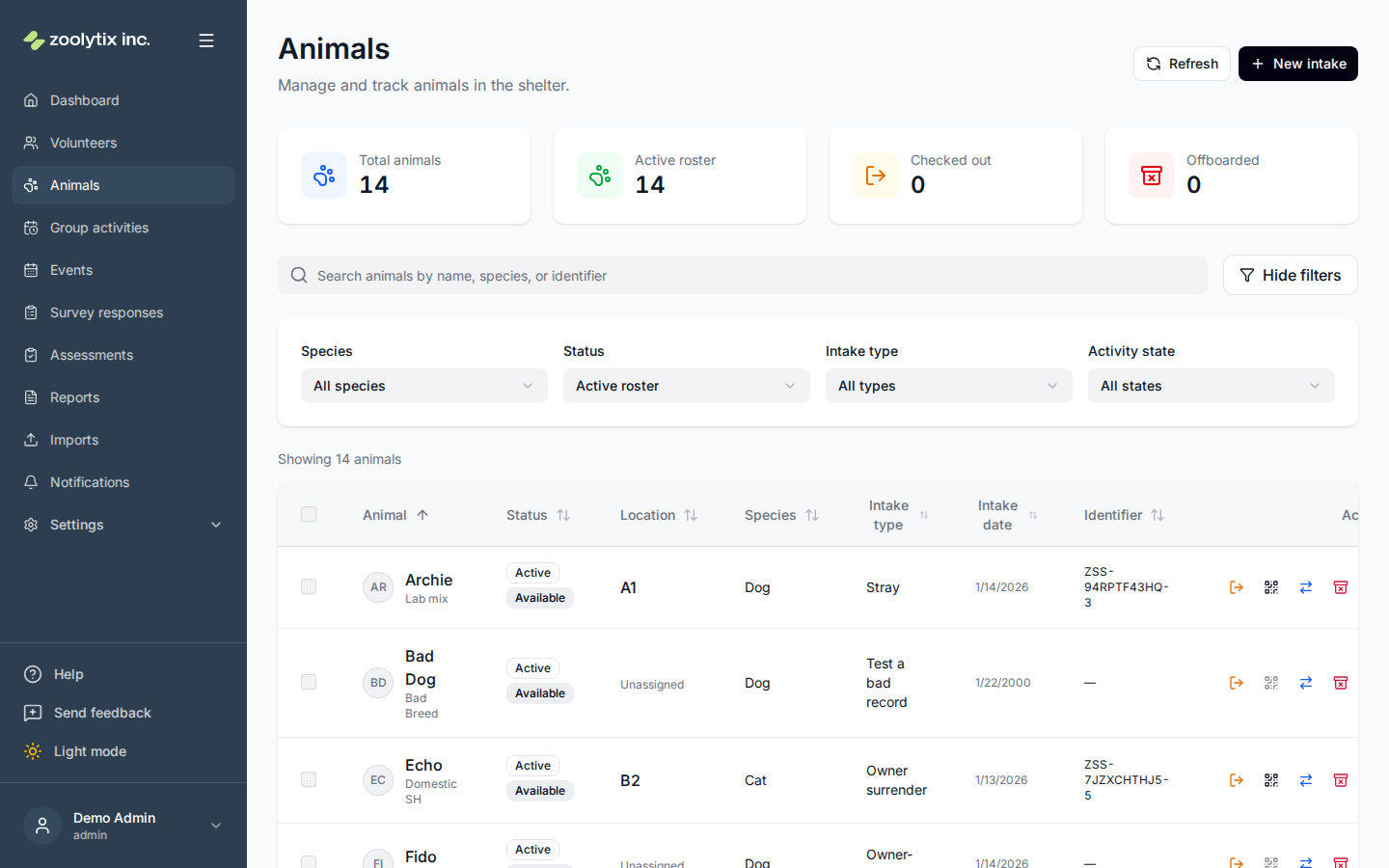
At the top of the sidebar, just under the ShelterSync logo, you'll see the organization you're signed into — its name, plus its logo if one is set. If you have accounts with more than one organization, glance here any time to confirm you're working in the right one; to switch organizations, log out and sign back in. For administrators the indicator is also a shortcut to Organization settings.
In the mobile app, the dark bar at the top of the screen does the same job: it names the organization you're signed into, with a small "Powered by Zoolytix ShelterSync" line under it — or "Zoolytix ShelterSync", or just "ShelterSync", when the screen is too narrow for the full line at your text size. To switch organizations there, too, sign out and sign back in.
At the bottom of the sidebar you'll always find:
- Help — opens quick help for the page you're on, with a link into this guide.
- Send feedback — report a problem or suggest an idea at any time.
- Light / dark mode — switch the colour theme to your preference.
Next steps
- New to your role? Read Roles & access to understand what you can do.
- Ready to work with animals? Start with the Animals page.
- Onboarding a group of people? See Imports.
TIP
Every page in this guide matches a screen in the app. Use the search box at the top to jump straight to what you need.