Appearance
Behavioral assessments
A behavioral assessment is a structured behavioral questionnaire you run on an animal, aligned with current shelter-medicine guidance (combine behavioral history with ongoing observation). ShelterSync scores the answers, gives a handling recommendation, and keeps the record. This page lists every assessment in your organization and is where you start new ones. Assessments are for staff and administrators.
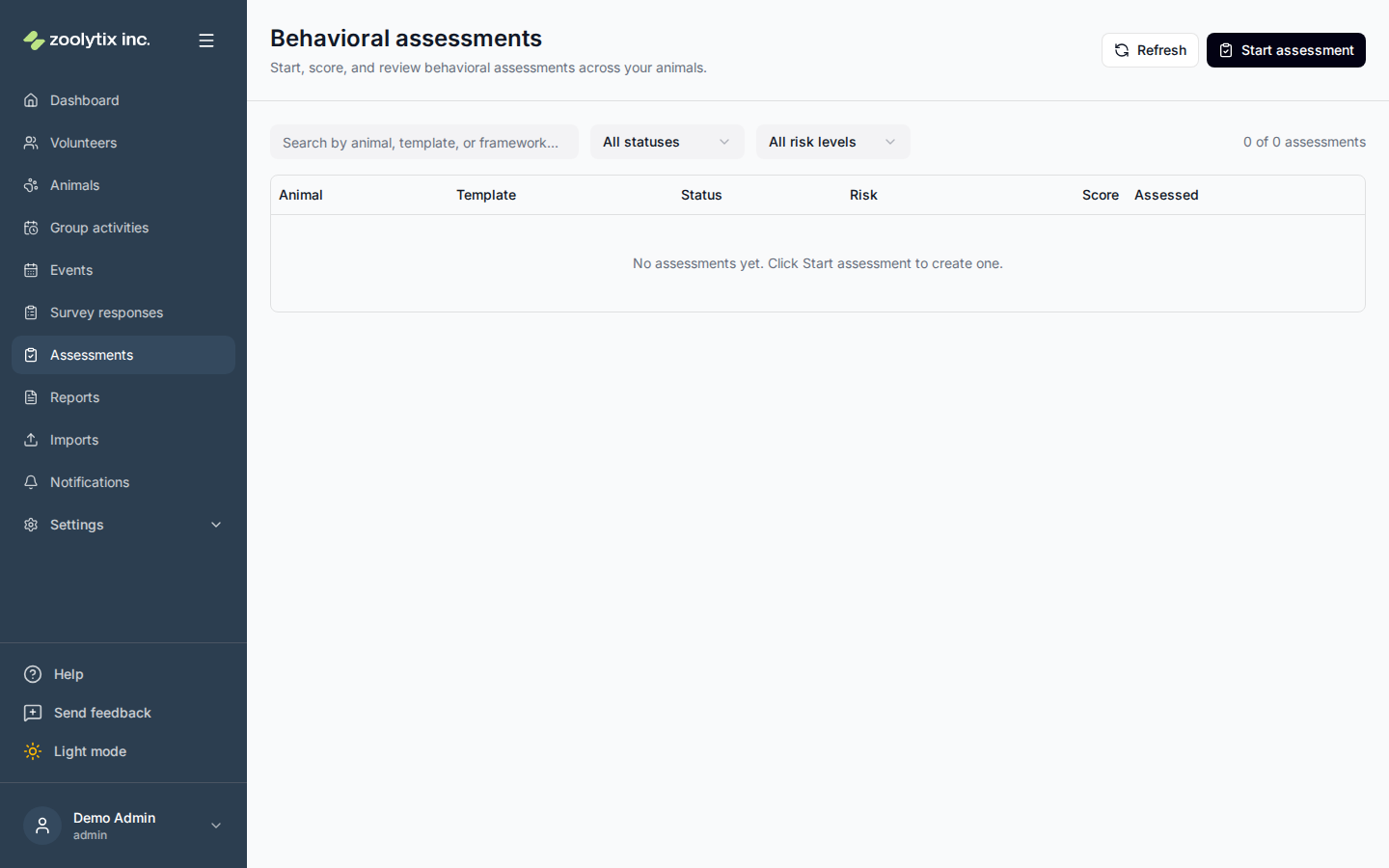
Start, score, and review behavioral assessments for your animals.
See every behavioral assessment in one searchable list on the Records tab, start a new assessment for an animal from a template, and open a finished one to read its answers, score, and handling recommendation. The Templates tab lists the assessment templates and lets admins build or edit them, including the green/yellow/red handling-recommendation thresholds and the species each template applies to. Each shelter starts with five default templates. Three apply to both dogs and cats — a Behavioral Intake History (an unscored questionnaire) and two scored observation logs (Daily Behavior Observation and Handling & Enrichment Observation). Two more are cat-specific, with feline-focused questions (hiding, litter box, affiliative signals, handling tolerance) — a Cat Behavioral Intake History and a Daily Cat Behavior Observation. You pick which one to record when you start an assessment (and a template targeted to a single species is pre-selected automatically when it is the only one matching the animal). The result is a handling recommendation (green = Standard handling, yellow = Experienced handler, red = Specialized handling) to help match animals to the right people and activities — it is one input among many, not a validated predictive test, and it does not change the animal's status, access, or handling tier. The animal's own handling tier is shown beside the recommendation so the two can be read together, and an operator holding the handling-tier permission can apply the recommendation to the animal deliberately, with confirmation. Assessments are available to staff and admins; editing templates requires the surveys management permission.
What you can do here
- Search or filter assessments by status and handling recommendation
- Start an assessment: search for an animal by name or species, then pick a template
- Fill in a draft assessment — questions with a show-when rule appear and disappear as you answer — then review and confirm to submit
- Open a completed assessment to read its answers and result
- Read the animal's current handling tier beside the assessment's handling recommendation, and — with the handling-tier permission — apply the recommendation to the animal after confirming it
- Discard a draft you started by mistake — it is deleted, not kept as a cancelled record
- Void a completed assessment with a reason (one-way; kept for audit); filter to Voided to review
- Build or edit an assessment template on the Templates tab
- Create a new template from the Start dialog — it opens the full-page builder and returns you to the Start dialog with the new template and your animal selected (needs the surveys management permission)
- Set which species a template applies to so it pre-selects automatically
Start an assessment
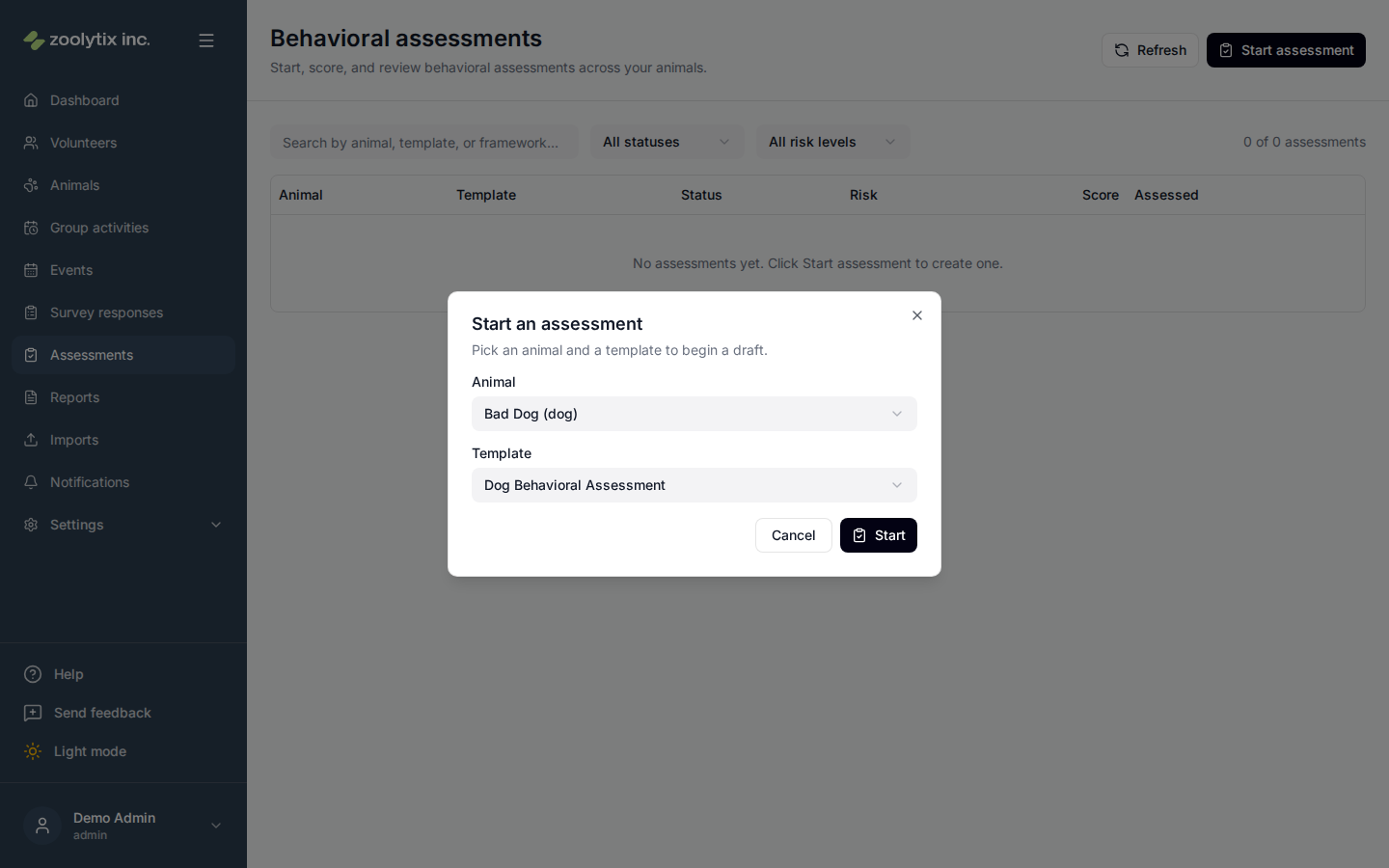
- Click Start assessment in the top-right.
- Pick the animal — start typing a name or species to filter the list. When the animal's species matches exactly one template, that template is pre-selected for you; you can always change it. Each shelter starts with five default templates. Three apply to both dogs and cats — a Behavioral Intake History (an unscored questionnaire) plus two scored observation logs, Daily Behavior Observation and Handling & Enrichment Observation. Two more are cat-specific, with feline-focused questions — a Cat Behavioral Intake History and a Daily Cat Behavior Observation. You choose which one to record.
- Don't have the template you need? If you can manage surveys, click Create new template next to the Template field to open the full-page builder — when you save, you're returned to the Start dialog with the new template selected and your chosen animal kept.
- ShelterSync creates a draft — an assessment you can fill in now or come back to later.
Fill it in and submit
Open the draft and answer the questions. Templates can use several question types, including:
- Rating — a 1–5 scale.
- Yes / no with a note — a yes/no answer plus an optional comment.
- Multiple choice, text, and number questions.
Templates can also hide questions that don't apply. If the template's author added a show-when rule to a question — "only ask this if the answer to Has this animal bitten anyone? is Yes", or "only ask this for cats" — that question stays out of your way until it's relevant, and disappears again if you change the answer that brought it up. A question you can't see isn't recorded, so an answer you gave before it was hidden isn't submitted.
As you answer, the calculated recommendation is shown just above the override control: the handling recommendation and score your answers currently add up to. That's what will be recorded unless you change it. Unscored templates have no score and no recommendation, so nothing is shown there.
You can save it as a draft and finish later, or submit when you're done. Started one by mistake? Discard draft throws it away — see Discard a draft below.
When you choose Review & submit, ShelterSync shows a review step first: a read-only summary of your answers and the proposed handling recommendation and score, calculated from what you entered. Nothing is recorded until you click Confirm & submit — use Back to keep editing. On confirm, ShelterSync re-scores the answers and records the final handling recommendation.
How the handling recommendation is decided
Each answer can carry points. The template's scoring rules turn the total score into a handling recommendation — a signal for who can safely work with the animal and what helps, not an adoptability or outcome verdict:
- 🟢 Standard handling (green) — any approved volunteer.
- 🟡 Experienced handler (yellow) — note the trigger and route enrichment.
- 🔴 Specialized handling (red) — specialized/approved handlers; follow the behavior & enrichment plan.
A handling recommendation is one input among many — not a validated predictive test — and it does not change the animal's status, access, or handling tier. If you disagree with the calculated recommendation, you can override it while filling the assessment — the calculated result is shown right next to the override control so you can see what you're changing. You'll be asked for a reason, which is recorded for the audit trail.
The recommendation and the animal's handling tier are different things
They are deliberately separate, and completing an assessment leaves the animal unchanged:
- The handling recommendation belongs to the assessment. It is what the answers add up to on the day, and it is advisory.
- The handling tier belongs to the animal. It is who may handle that animal, and it only changes when someone with permission changes it.
So that you can see the two together, a completed assessment shows the animal's current handling tier beside its handling recommendation, and the Records list has a column for each.
If you hold the handling-tier permission, a completed assessment that has a recommendation also offers Apply to animal's handling tier. It pre-fills the tier the recommendation suggests, but you confirm it and can choose a different one — nothing is applied automatically. The change is recorded in the audit log with who made it and what changed, and the assessment itself is left as it was. Without that permission the action is not shown, and the assessment cannot change the tier by any other route. It is the same permission that governs setting a handling tier anywhere else in ShelterSync, so anyone who can set one from the Animals list can set one from here. It is also not offered where there is nothing to apply: an unscored assessment, or one that has been voided.
Review past assessments
The list shows every assessment with its animal, template, status, handling recommendation, the animal's current handling tier, score, and who assessed it. Use the search box and the status / handling recommendation filters to find what you need, then click a row:
- A draft opens so you can keep filling it in.
- A completed assessment opens read-only, showing the answers, score, the handling recommendation, and the animal's current handling tier.
Discard a draft
Started an assessment you didn't mean to start, or opened a form just to look at it? Open the draft and click Discard draft, then confirm.
Discarding deletes the draft — the assessment and any answers you had entered are gone, and nothing is left on the animal's record. It isn't kept as a cancelled entry, which is what used to happen and what cluttered up the animal's history with false starts. Because it can't be undone, ShelterSync asks you to confirm first.
Only drafts can be discarded. Once an assessment has been submitted it is part of the animal's record: it is never deleted, and Void below is how you take it out of the active record.
Void an assessment
Recorded a wrong assessment? You can void a completed assessment instead of deleting it. On the Records tab, click Void on the row, enter a reason, and confirm. Voiding:
- Keeps the record for the audit trail — it is never permanently deleted. Voiding is one-way: the assessment stays voided.
- Hides it from the default list. Use the Voided status filter to see voided assessments.
- Removes the handling recommendation from the active record. (Assessments don't change an animal's status, so there's no restriction to undo.)
Fields explained
| Field | What it means |
|---|---|
| Animal | The animal being assessed. Start typing a name or species to filter the list, then pick the animal. Offboarded animals are not shown. |
| Status | Where the assessment is: draft (in progress), completed (submitted and scored), or voided (a completed assessment removed from the active record but kept for audit). A draft you discard is deleted outright, so it has no status. |
| Handling recommendation | The result ShelterSync calculates from the answers, on a green/yellow/red scale: Standard handling, Experienced handler, or Specialized handling. It says who can safely work with the animal and what helps — it is not an outcome or an adoptability verdict, and it does not change the animal's status, access, or handling tier. Unscored templates produce no recommendation at all. |
| Animal handling tier | The animal's own handling tier — who may handle it (not yet assigned, volunteer-friendly, experienced-only, or staff-only; a new animal is Not yet assigned until somebody sets it). It is shown next to the handling recommendation so you can see when the two differ. It is a separate, deliberate setting: it only changes when someone with permission changes it. |
| Apply to animal's handling tier | Sets the animal's handling tier from a completed assessment you are reading. The tier is pre-filled from the recommendation, but you confirm it and can pick a different one — nothing is applied automatically, and the assessment itself is unchanged. The action needs the handling-tier permission — the same one that governs setting a handling tier anywhere else — and is not shown without it, and the change is recorded in the audit log. It is also not offered where there is nothing to apply: an unscored assessment, or one that has been voided. |
| Score | The total points from the answers; the template's scoring rules turn the score into the handling recommendation (green/yellow/red). |
| Calculated recommendation | The handling recommendation and score the current answers add up to, shown while you fill the assessment and updated as you answer. It is what will be recorded unless you set an override. Unscored templates have no score and no recommendation, so nothing is shown for them. |
| Override recommendation (optional) | Replaces the calculated result with a recommendation you choose. Leave it on "Use calculated recommendation" to keep what was calculated; an override needs a reason so the record explains itself later. |
| Discard draft | Throws away a draft assessment you started and don't want to keep — the draft and any answers you entered are deleted, and nothing is left on the animal's record. You are asked to confirm first, because it cannot be undone. Only drafts can be discarded: once an assessment is submitted it is part of the record, and Void is what removes it. |
| Void | Voiding is one-way: it removes a completed assessment from the active record while keeping it for the audit trail (it is never deleted). A reason is required. Voiding does not change the animal's restriction — a restricted animal stays restricted, so review it separately. Voided assessments are hidden until you filter to Voided. |
| Applies to species | Which animal species this template is for. When you pick an animal whose species matches exactly one template, that template is pre-selected on the Start dialog. Leave empty to apply to any species — including species added later; it never hides or blocks a template. The template records which species you ticked, not what they are called, so renaming a species keeps the template pointing at it. A species an assessment template applies to cannot be deleted; untick it here first. A deactivated species is not offered here — except one this template already applies to, which stays on the list marked inactive so you can see it and untick it. |
Where templates come from
The questions in an assessment come from a template. On the Templates tab, New template (and Edit on a row) opens the full-page builder, split into two tabs. The Properties tab holds the details — title, code, description, which species the template applies to, and whether it is scored (with the handling-recommendation thresholds). The Builder tab is where you add questions as blocks from the palette on the left — click a type to append it, or drag the type onto the canvas to drop it where you want — a line shows the insertion point, so you can drop it between two existing questions. Each question is an editable block — set its prompt (property blocks like the animal's name appear as green chips you click or drag in), type, answer options and scores, whether it's required, and a show-when condition; drag a block by its grip handle to reorder it (keyboard: focus the handle, press Space, then the arrow keys), and the live preview on the right shows how it will look. The species setting is what lets the right template pre-select itself when you start an assessment (empty = applies to any species, just no auto-select).
TIP
Need to change an answer on a completed assessment? Completed assessments are read-only to keep the record trustworthy. Start a new assessment for the animal to re-evaluate it.